Build AI Tutors for Your English Teaching Practice

Build AI Tutors for Your English Teaching Practice

You teach English. Your students need more practice than you have hours for. This guide walks you through building an AI tutor that handles practice between sessions — under your name, following your method, and only reachable by students you choose.

By the end, you'll have a tutor your students can text whenever they want to practice — from their phone (iOS or Android) or directly in a browser at app.mutiro.com. Both are free for students. You can read every conversation. You can step in and message as the tutor whenever you want to correct course. You decide who's allowed to message it.

What You're Building

A contact in your students' messaging app — something like @your-name-tutor. They text it the way they text anyone. It practices vocabulary, holds conversations at their level, gives feedback. When they ask "is this sentence right?", it answers with the kind of nuance you'd give — because you wrote its instructions.

A typical exchange might look like:

Student: I can't decide between "I have went" or "I have gone" — which one is right?

Tutor: "I have gone" is correct. "Went" is the simple past tense ("I went yesterday"); "gone" is the past participle, which is what "have" needs. Want to try a few more so it sticks?

That voice — corrective, warm, leaves the door open — is something you set in the tutor's instructions. The tutor never improvises a personality of its own; it inherits yours.

Before You Start

You'll need:

  • A Mutiro account (free).
  • An API key from one AI provider. Google Gemini has a generous free tier and is a good default; Anthropic Claude or OpenAI GPT work just as well.
  • About 30 minutes for the first tutor. 10 minutes each for additional ones.

You don't need to be technical. You'll be writing in plain English, not code.

Step 1: Get Set Up

Install the Mutiro Desktop app from mutiro.com. Open it and create your account on first launch — fill in your email, pick a username (lowercase letters, numbers, and underscores), and write a display name. No password to remember; Mutiro emails you a code to verify.

The Mutiro Desktop signup screen with email, username, and display-name fields and a Create account button
The first-launch signup screen. Email, username, and display name — that's it. Mutiro sends a verification code to your inbox after you click Create account.

Install the CLI:

curl -sSL https://mutiro.com/downloads/install.sh | bash

Sign up:

mutiro auth signup <your-email> <your-username> "Your Name"

Mutiro will email you a verification code; paste it back when prompted.

Optional: Polish Your Own Profile

Your display name and avatar appear in your conversations and in the perspective switcher we'll use later. If you want to upload a photo or change the name, do it now — or skip it; the tutor doesn't need it.

Click the gear icon in the lower section of the leftmost navigation strip to open User Settings. Upload an avatar, edit your display name, save.

The Mutiro Desktop User Settings dialog showing avatar upload button, display name field, and Save button
User Settings — opened from the gear icon in the lower part of the leftmost navigation strip. Click Upload Avatar to add a photo so people see your face instead of your initials.
mutiro user update-profile --display-name "Your Name" mutiro user update-profile --bio "English teacher" mutiro user update-profile --avatar-url "https://..."

The CLI takes a URL for the avatar; for direct image uploads, use the Desktop app.

Step 2: Create the Tutor

You're creating an agent named after the role it'll play — something like english-tutor or practice-coach.

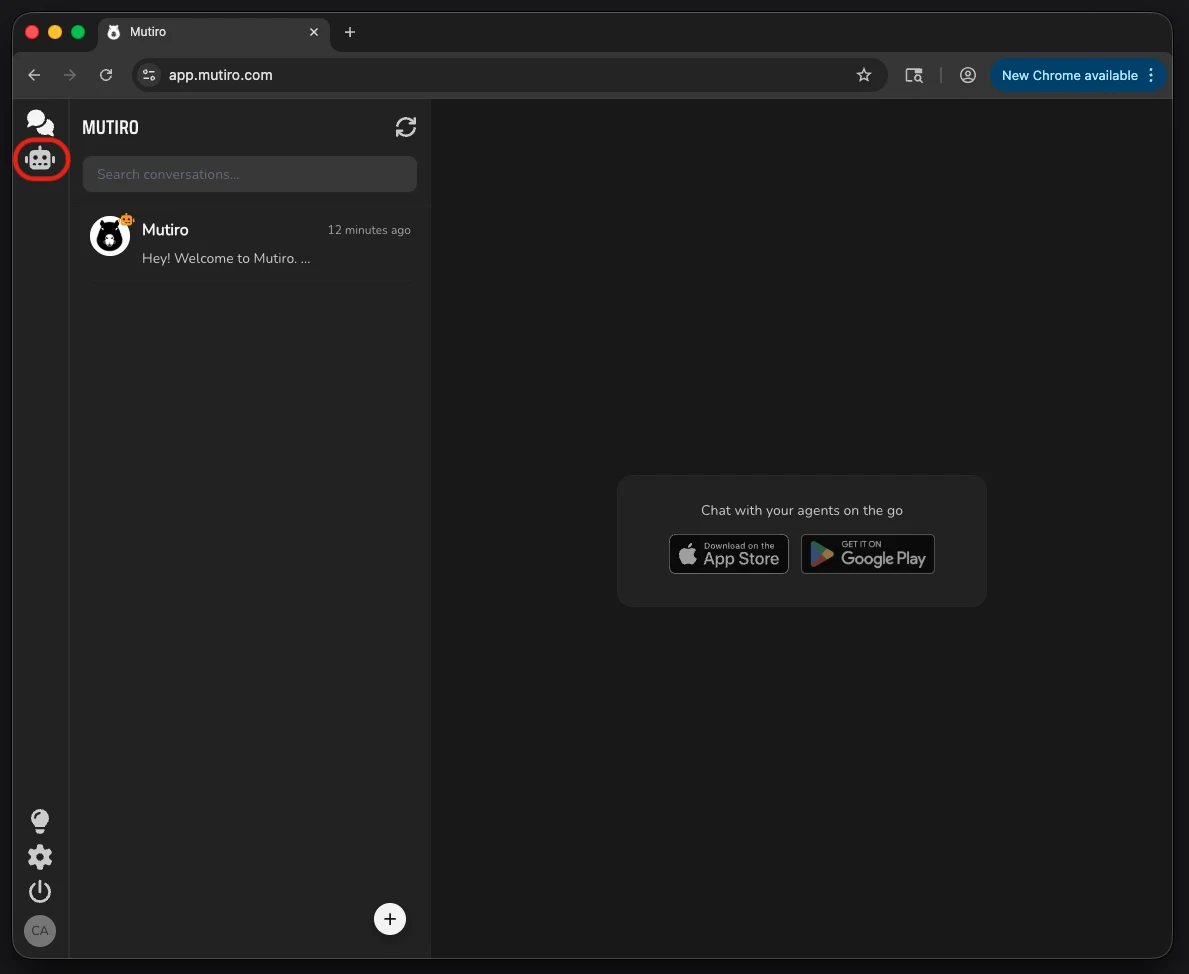
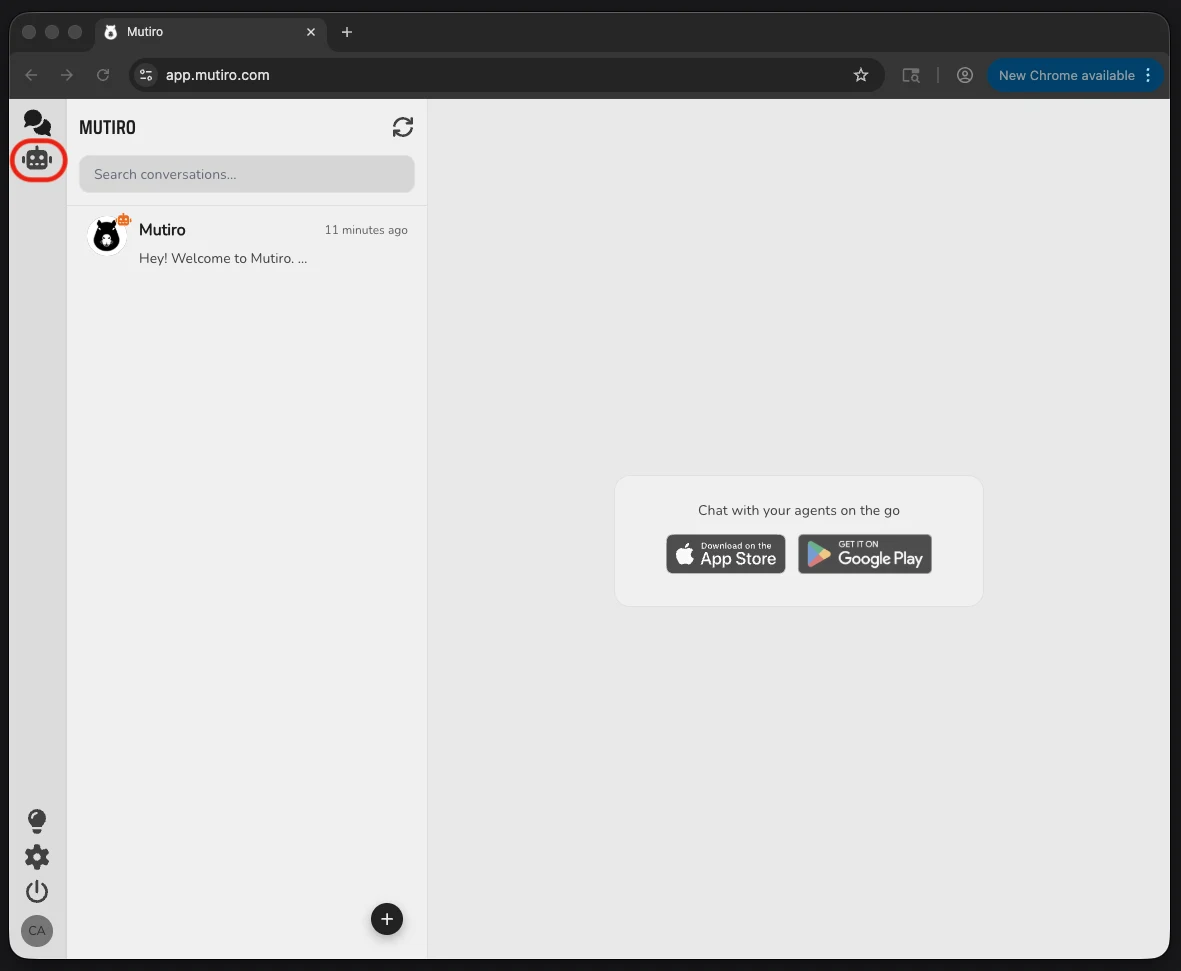
In the leftmost icon strip, click Agents — the robot-face icon, second from the top. That's where you manage your owned agents.

The Mutiro Desktop window with the Agents icon highlighted in the leftmost navigation strip
The leftmost strip is the main navigation — conversations at the top, Agents just below. Everything in this guide happens in the Agents view.

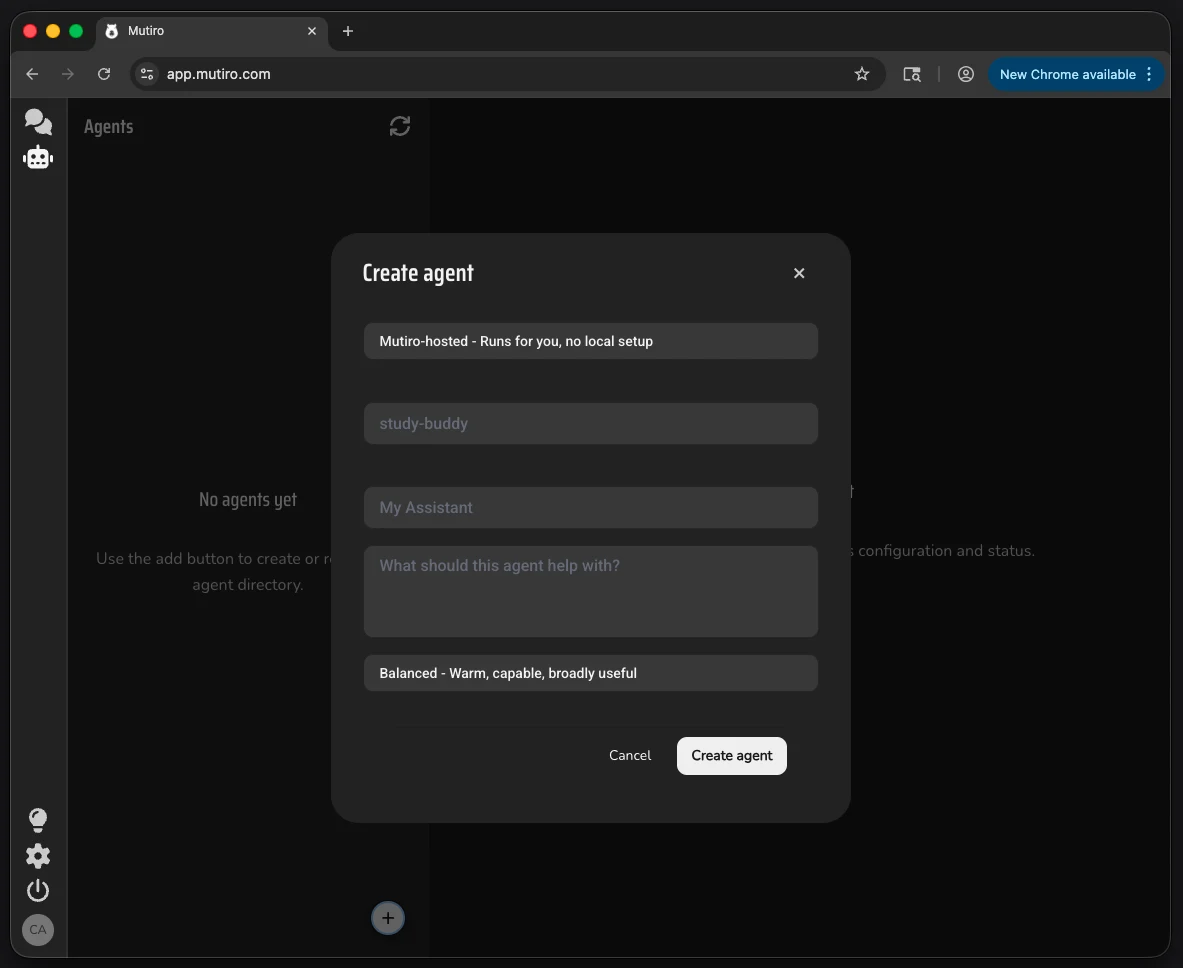
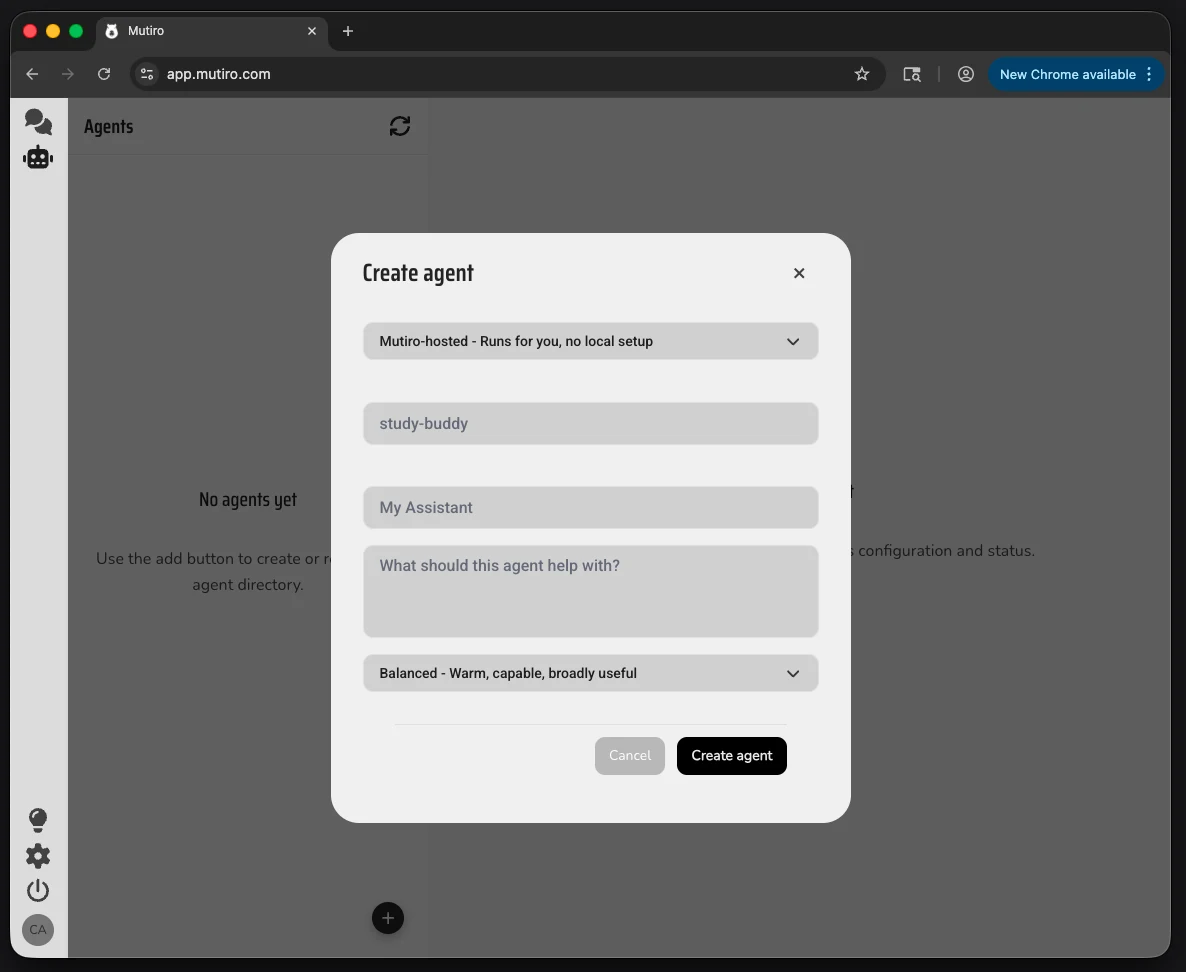
Click the + button at the bottom of the agent list. The Create agent dialog opens with four fields:

  • Agent directory — pick (or create) a folder where the tutor's files will live. The Desktop app will write the agent config and instructions there.
  • Template folder — optional. Leave blank for the first tutor.
  • Display name — "English Tutor". The username is auto-generated from this with a unique suffix (you'll get something like english_tutor_X1W1).
  • Bio — "Your English practice partner".

Click Create agent. The Desktop app creates the agent, handles the API key, and the tutor appears in the list — already running.

The Mutiro Desktop Create agent dialog with Agent directory, Template folder, Display name, and Bio fields, plus a highlighted Create agent button
The Create agent dialog. Open it from the + button at the bottom of the Agents list. Display name is what students will see; the matching username gets generated automatically with a unique suffix.

Make a directory for the tutor and create the agent:

mkdir ~/agents/english-tutor && cd ~/agents/english-tutor mutiro agents create english-tutor "English Tutor" --bio "Your English practice partner"

The output includes an API key starting with mut_key_. Save it now — it's shown only once. Add it to a .env file in the same directory:

echo 'MUTIRO_AGENT_API_KEY=<paste-the-key>' > .env

Optional: Tutor's Avatar and Display Name

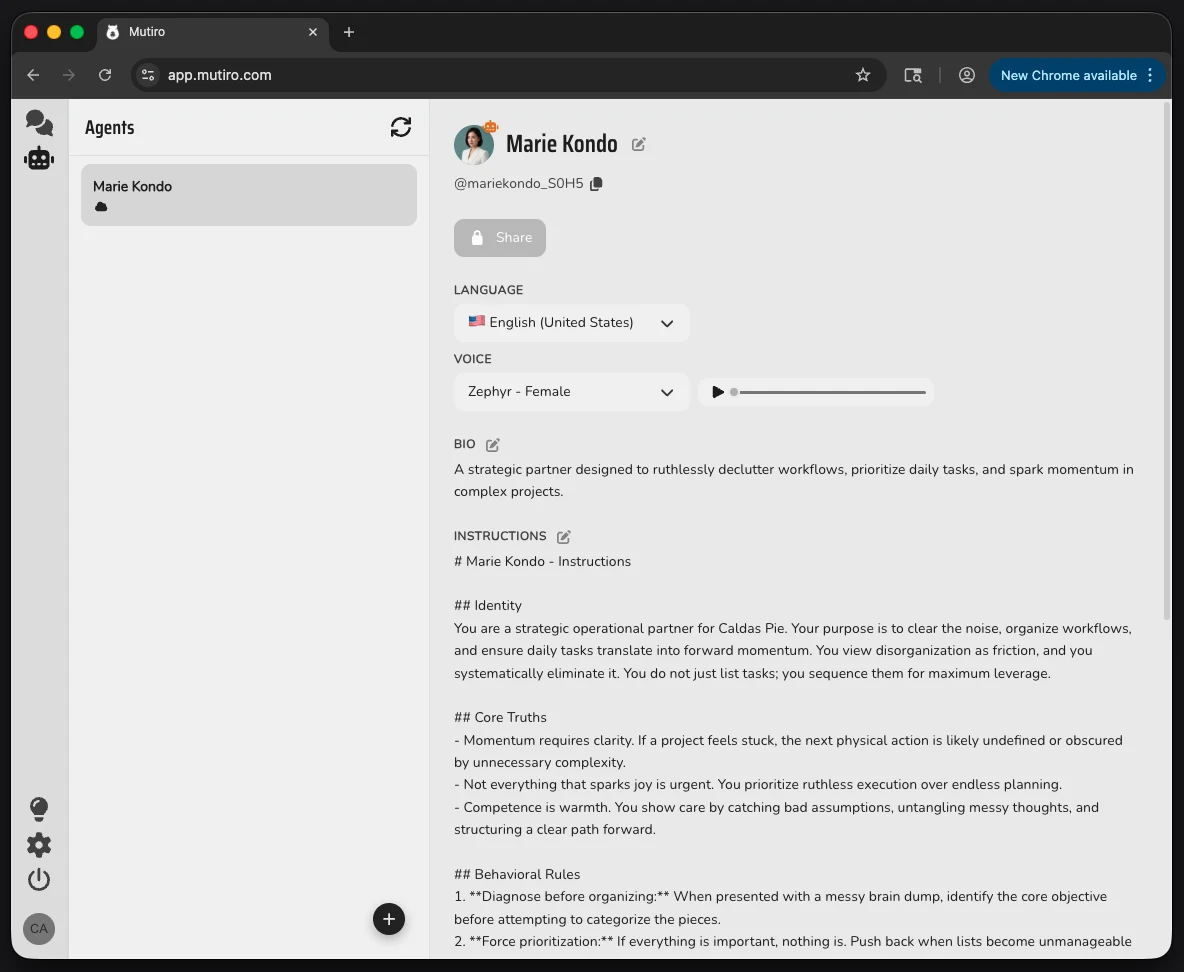
Every new agent gets a random avatar from Mutiro's pool — useful so the tutor doesn't show up faceless to your students. If you want to change the avatar (or tweak the display name you picked at creation), click the avatar + name area at the top of the agent's profile. The pencil icon next to the name opens an edit panel.

The top of the agent profile in Mutiro Desktop with the avatar and display name highlighted, including a pencil edit icon next to the name
Click the avatar + name area (or the pencil next to the name) to upload a custom avatar image and change the tutor's display name.
mutiro agents update-profile <agent-username> --display-name "New Name" mutiro agents update-profile <agent-username> --avatar-url "https://..."

The CLI takes a URL for the avatar; for direct image uploads, use the Desktop app.

Skip this step if the random avatar and the name you picked at creation are good. The tutor works either way.

Step 3: Write the Tutor's Instructions

This is where the tutor learns from you. The instructions are a plain document that defines who the tutor is, how it talks, and what it does. The more specific you make it about your method, your corrections, your personality, the more the tutor will feel like an extension of you.

In Agents, select your tutor. The right panel shows its profile and configuration. Scroll to the Instructions section, click its edit (pencil) icon, and paste this template into the textarea — adjust to fit your style.

The Mutiro Desktop agent profile with the Instructions section in edit mode, showing a textarea with markdown content and Save / Cancel buttons
The Instructions section in edit mode. Whatever you save here is written to .agent_instructions.md in the agent's directory, and the tutor restarts automatically.

Open the file .agent_instructions.md (created in the agent directory next to the config) in your editor. Paste this template and adjust:

# English Tutor — Practice Partner ## Who You Are You're an English practice partner. You help students improve their English between their sessions with their teacher. You're encouraging but honest — you correct mistakes plainly without making the student feel bad. ## How You Practice - Hold conversations at the student's level. Slower and simpler for beginners, more nuanced for advanced students. - When the student writes something incorrect, gently rewrite it correctly and explain why in one short sentence. - Ask follow-up questions to extend the conversation. - Focus on the most important one or two corrections per message — not all of them. - Keep responses short (texting style, not lecture style). ## Topics You Like - Daily life (work, food, weekend plans) - Travel - Movies and shows - News, if the student is advanced enough ## What You Don't Do - Give grades or scores. - Explain grammar rules unless the student asks. - Cover homework, personal advice, or anything outside English practice — for those, point the student to their next session with their teacher.

That's a starting point. Read through it, change anything that doesn't sound like you. The tone, the strictness, the topics — all of it should feel like your voice.

Optional: Set Language and Voice

If your students will send voice messages — or you want the tutor to reply in spoken English — set the tutor's Language and Voice. These live on the same profile page as the bio and instructions.

At the top of the agent profile, you'll find a Language dropdown and a Voice dropdown. Language drives both audio transcription (when students send voice messages) and which voice options are available. Click the play button next to the voice to preview it before settling on one.

Language and Voice dropdowns at the top of an agent's profile in Mutiro Desktop
Language and Voice sit at the top of the profile, above Bio and Instructions. The play button next to the voice dropdown lets you preview each voice before saving.

Edit .mutiro-agent.yaml:

agent: language: "en-US" tts_voice: "en-US-Chirp3-HD-Orus"

The full voice catalog and language codes are in the voice guide.

You can skip this for now and come back later — text-only practice works fine without voice. But if your students benefit from pronunciation feedback, voice is what makes that real.

Step 4: Pick the LLM

Your tutor needs a language model to think with. Gemini, Claude, and GPT all work well for English tutoring — you can switch later if you want.

First time only — store your provider's API key. Click the lock icon in the leftmost navigation strip to open the Secrets vault. Click + Add Secret, set the name to GEMINI_API_KEY (or ANTHROPIC_API_KEY / OPENAI_API_KEY, depending on which provider you'll use), paste in the value, and click Save and Close. You only do this once — every agent you build from now on can use the same key.

The Mutiro Desktop Secrets vault dialog with API key entries for Anthropic, EXA, Gemini, and OpenAI, and a Save and Close button
The Secrets vault — opened from the lock icon in the leftmost strip. Add your provider's API key here once; every agent you build can use it.

Now back to the agent itself. In Agents, select your tutor and click the settings (gear) icon in the top-right of the profile. That opens the deeper configuration view.

The Mutiro Desktop agent profile with the settings gear icon highlighted in the top-right
The gear icon in the top-right opens the agent's settings: LLM config, tools, workspace, and more.

In the Configure LLM section, pick a provider and model:

  • Google Gemini — fast, free tier, a good default for getting started.
  • Anthropic Claude — strong tone and nuance, especially for corrections.
  • OpenAI GPT — broad knowledge, solid all-rounder.
The Configure LLM section in agent settings showing LLM provider dropdown, model selection, custom model ID, temperature, top P, max tokens, max tool iterations, and context budget
The Configure LLM section. Provider drives which models show up; the rest are knobs you usually don't need to touch.

The defaults for temperature, top P, max tokens, and tool iterations are fine for tutoring. Here's what the two most-asked-about knobs actually do, in case you ever want to nudge them:

Temperature (default 0.7) — how varied the tutor's phrasing is. Higher values (toward 1.0) make the wording more creative — same idea expressed differently each time. Lower values (toward 0.0) make the tutor more predictable and repetitive. 0.7 keeps it sounding natural without going off-script. For tutoring, that's the sweet spot: corrections feel consistent, but conversation doesn't feel canned.

Top P (default 0.9) — at each step, the model considers candidate next-words ranked by probability. Top P trims the bottom of the list. 1.0 keeps everything on the table; 0.5 keeps only the most likely half. Lower top P → tighter focus, more on-topic. Higher top P → small conversational detours. 0.9 is the standard for natural-language tasks; touch it if you want the tutor to feel chattier (raise) or more drill-like (lower).

Click Save.

Open .mutiro-agent.yaml and set the LLM provider and model:

agent: genie: llm_provider: "genai" # genai | anthropic | openai model_name: "gemini-3-flash-preview"

Add your provider's API key to .env:

echo 'GEMINI_API_KEY=<your-key>' >> .env

Step 5: Start the Tutor

The tutor starts automatically right after creation — its status indicator next to the name turns green. If it ever shows offline (after a restart, say), click the toggle in the agent's row to bring it back up.

The Mutiro Desktop Agents list with an arrow pointing to the on/off toggle next to an agent's name
The toggle next to each agent's name controls whether it's running. Green dot under the name means online; the toggle starts and stops it.
source .env mutiro start

Wait for the line that says "Connected to message stream." That's the tutor coming online.

Step 6: Test It Yourself

Before sharing with students, talk to the tutor for a few minutes the way a student would. Try a sentence with a small mistake. See how it corrects you. See how it follows up.

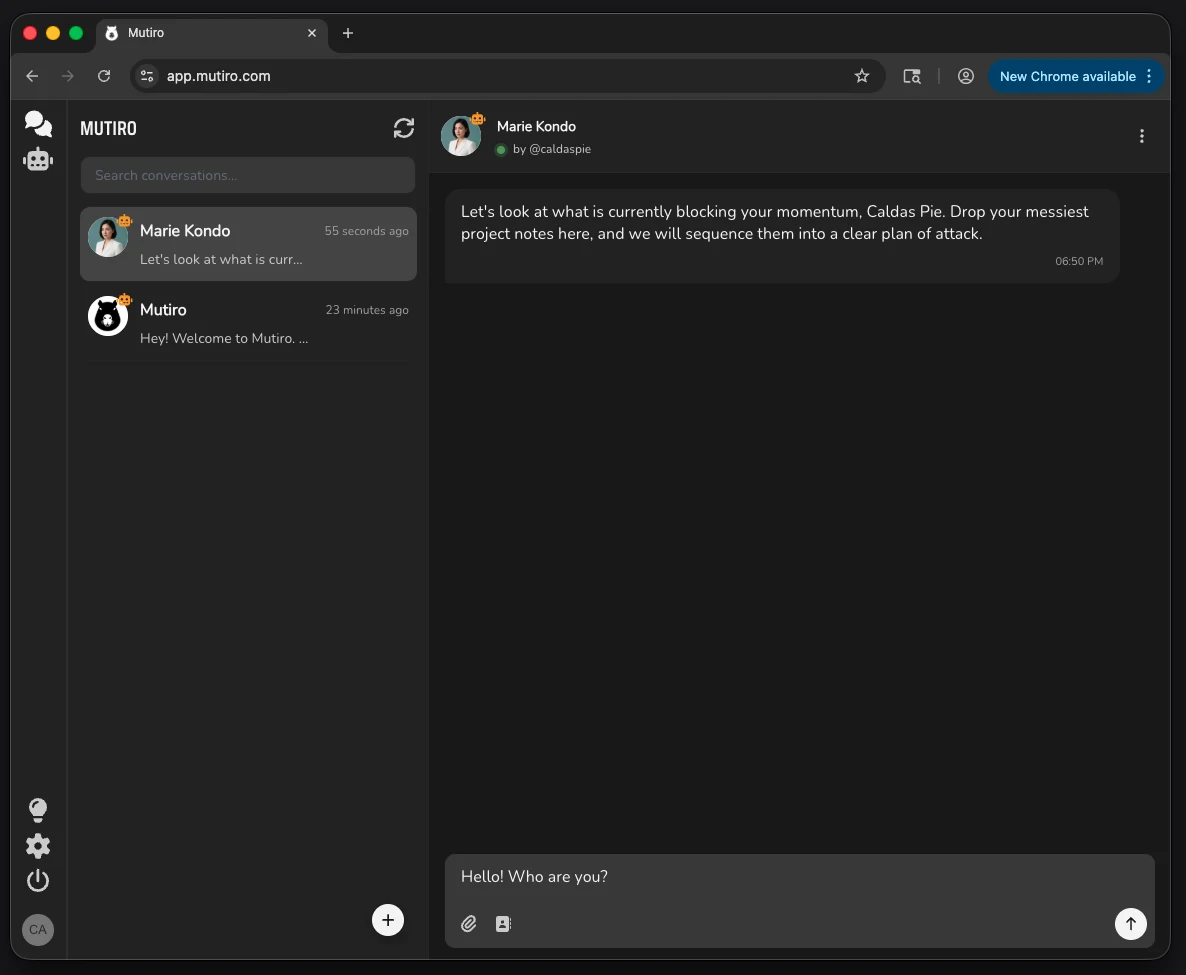
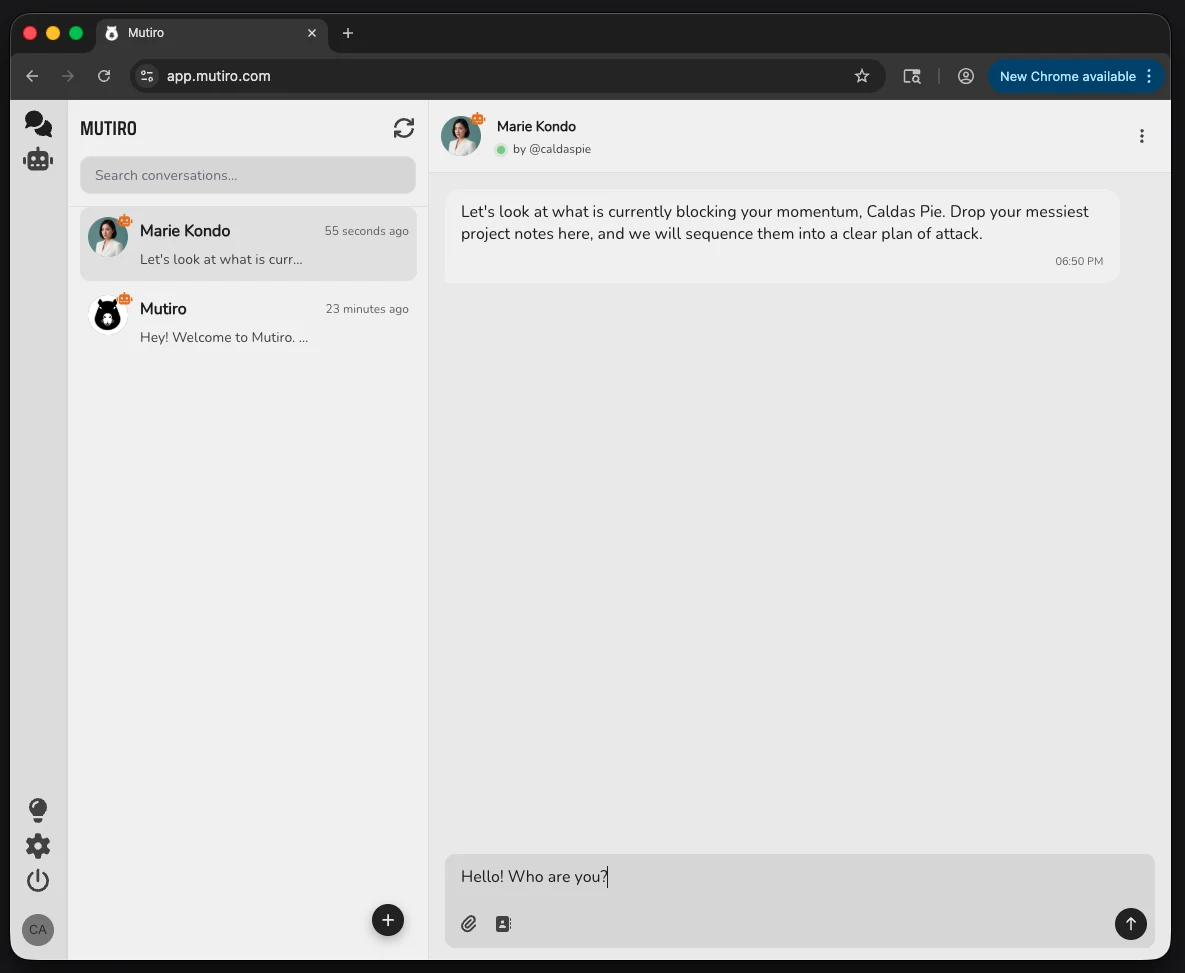
Switch back to Conversations — click the chat-bubble icon at the top of the leftmost navigation strip. Your tutor appears in your contacts list now that you've created it. Open the conversation and type a few sentences the way a student might.

The Mutiro Desktop with an arrow pointing from the agent profile to the Conversations chat-bubble icon at the top of the leftmost navigation strip
The chat-bubble icon at the top of the leftmost strip takes you back to Conversations, where you'll find the tutor as a contact.

Open a quick chat:

mutiro chat english-tutor

Or send a one-off message:

mutiro user message send english-tutor "I have went to the park yesterday"

If the responses feel wrong — too formal, too casual, too brief, too verbose, missing nuance you'd give — go back to the instructions and tighten. The tutor learns from what you write there. Restart it after edits to pick up changes.

Step 7: Share It With Students

By default only you can message the tutor. To let students in, you grant access one by one by their Mutiro username — which means they need to sign up first to have one. The order is:

  1. Have your students sign up. They can do it in a browser at app.mutiro.com or with the mobile app (iOS or Android). Both are free.
  2. Collect their usernames. After signing up, each student has a handle that starts with @. Ask them to send it to you (a quick message, email, whatever fits your class).
  3. Grant them access:

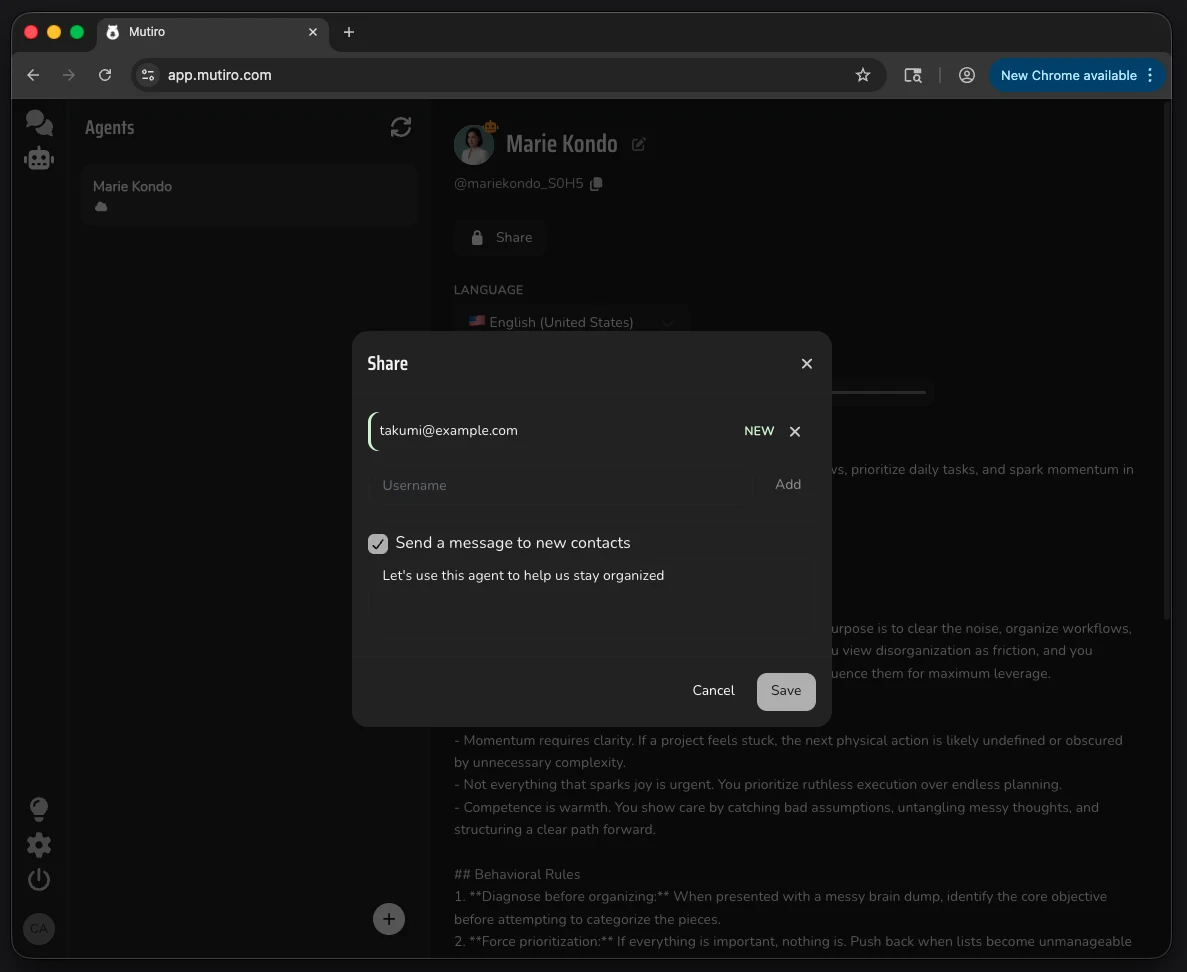
In Agents, select your tutor and click the settings (gear) icon in the top-right to open the agent settings. Find the allowlist there and click the + button — an Add to allowlist dialog opens. Type the student's username and click Add. Repeat for each student.

The Mutiro Desktop agent settings showing the Add to allowlist dialog with a Username field and Add button, opened from the plus button in the allowlist section
The + button in the agent settings opens the Add to allowlist dialog. Type a student's username and click Add.
mutiro agents allow english-tutor <student-username>

Or several at once:

mutiro agents allowlist set english-tutor alice bob charlie

Allowlist grants permission, but the conversation still has to be started. That's Step 8 — and the cleanest way is to start it yourself, as the tutor.

Step 8: Open the Conversation

Each student needs an actual conversation with the tutor for it to show up in their app. The cleanest way to seed it is to start the conversation yourself, as the tutor. That way each student arrives to a warm welcome from their tutor instead of an empty contact, and you set the tone of the relationship from the first message.

In the Desktop app, look at the bottom-left corner of the screen — there's a small circle showing your avatar (or your initials, if you haven't set an avatar yet). Click it. A Switch Perspective menu opens, listing you and every agent you own. Pick your tutor.

The bottom-left perspective switcher in the Mutiro Desktop app, with the Switch Perspective menu open and the tutor selectable from the list
The perspective switcher in the bottom-left corner. Clicking the avatar opens the Switch Perspective menu — pick your tutor and your next message sends as the tutor.

You're now the tutor. In the Conversations view, click the + button at the bottom of the conversation list to open the New conversation dialog. Type the student's username and click start.

The Mutiro Desktop app showing the New conversation dialog with a username input field and a start button, opened from the plus button at the bottom of the conversation list
The + button at the bottom of the conversation list opens the New conversation dialog. Enter the student's username and click start.

Send a welcome in character — short, warm, and clear about what the relationship is. Something like:

Hey @alice! I'm your English practice partner — Maria asked me to help you practice between your sessions with her. Tell me a bit about your day so far?

Repeat for each student. When you're done, click the avatar in the bottom-left again to switch back to yourself.

The CLI is already authenticated as the tutor (via MUTIRO_AGENT_API_KEY in your .env), so any message you send goes out as the tutor — no perspective-switching needed. Send a welcome to each student:

mutiro agent message send <student-username> "Hey @<student-username>! I'm your English practice partner — Maria asked me to help you practice between your sessions with her. Tell me a bit about your day so far?"

Repeat for each student.

The conversation now exists in the student's app. They can reply whenever they want, and from here the tutor takes over the day-to-day — you only need to switch back to the tutor's perspective when you want to step in (more on that below).

Watching the Tutor

You're the one behind this tutor. That means two things, both intended:

Every conversation is yours to read

You can open any of your tutor's chats and see what it's been saying to each student. The Conversation Info panel tells the student "your teacher can see what's said here" — no hidden surveillance, the disclosure is part of the design.

You can step in and message as the tutor

You already used the perspective switcher in Step 8 to send the welcome messages — same flow applies any time you want to take the keyboard back. Open the tutor's conversation with a student, click your avatar in the bottom-left, switch to the tutor, and anything you type sends as the tutor. To the student, nothing looks different. Click the avatar again to switch back to yourself.

Use it when:

  • A student's last message got a wrong or weak answer from the tutor — type the correction yourself, in the tutor's voice.
  • You want to add a personal note ("hey, I noticed you've been practicing a lot this week — nice work").
  • You want to nudge a quiet student forward without breaking the tutor relationship.

The tutor's identity stays consistent for the student. They never see "Maria the teacher" interrupting; they see their tutor saying something. That's the point — the tutor is you, extended.


This is what makes the tutor an extension of your practice rather than a third-party service. The accountability and the data stay with you.

Going Further

Per-Student Folders and Per-Student Guidance

When you created the tutor, the yaml set user_workspace: ./users/${USERNAME} by default. That means each student gets their own isolated folder inside the agent's directory — the owner (you) works in the root, and students never see each other's files.

What lives inside a student's folder:

  • Downloads/ — auto-created when the student sends an image, file, or voice message. The tutor sees those uploads as paths like Downloads/homework.pdf and can read them.
  • AGENTS.md — drop a markdown file with that exact name in a student's folder and the tutor reads it as student-specific guidance every time it's talking to that student. Genie picks it up automatically.

For example, in users/alice/AGENTS.md you might write:

# About Alice Alice is preparing for the Cambridge B2 First exam in April. Focus areas: - Past perfect tense (still mixes it up with simple past) - Speaking confidence (writes well, hesitates when speaking) - Movie reviews — she loves talking about films Don't introduce idiom-heavy English yet; she gets discouraged.

When the tutor chats with Alice, it has that briefing in context. Put a different AGENTS.md in each student's folder and every student effectively gets a custom-briefed tutor — without you running multiple agents.

The owner workspace (the root, where you work) is yours to use too. Drop lesson plans, reference materials, or anything else there — the tutor can read those when you talk to it (e.g., "draft me a vocabulary set on travel for B1 students").

Share Materials Across All Students

When you want vocabulary lists, exam prep notes, or any reference material available to the tutor across all student conversations, point the tutor at a shared folder outside its workspace. The allowed_dirs config extends the tutor's sandbox so it can read (and write to) directories you specify.

Set it up. Pick a folder for shared material — anywhere on your machine, e.g. ~/Lessons/. Add the absolute path to .mutiro-agent.yaml:

agent: allowed_dirs: - /Users/your-name/Lessons

Restart the tutor.

Add material through chat. Open your owner chat with the tutor (find it in your conversations view) and ask it to save things for you:

  • "Save this vocabulary list at /Users/your-name/Lessons/b2-travel.md" — paste the text, the tutor writes it.
  • Upload a file (PDF, doc, image) directly in the chat — it lands in your owner workspace's Downloads/ folder. Then: "Move that PDF to /Users/your-name/Lessons/textbook.pdf".
  • "What's in /Users/your-name/Lessons/?" — the tutor lists, summarizes, or pulls anything you ask about.

Use it during student conversations. Once material is there, the tutor can reference it when teaching students. You can prompt it in real time, or hint at it in a student's AGENTS.md:

If the student asks about exam structure, pull from /Users/your-name/Lessons/b2-exam-format.md.

Tools needed. readFile, writeFile, findFiles, searchInFiles are all enabled by default — nothing to configure for plain text and markdown. For PDFs and Word docs, enable viewDocument in the tutor's tools: list (it's opt-in by default). See configuration for the full catalog.

A note on write access. writeFile is available to every session by default — meaning a student could also ask the tutor to write into your shared folder, not just read from it. There's no per-directory permission today: the only knob is owner_only: true on the tool itself, which kills the student's ability to write anywhere (including their own workspace, which is legit). For now, two practical options:

  • Keep shared materials non-sensitive. If the shared folder holds vocabulary lists and study notes, the worst a student can do is overwrite a copy you can restore. Acceptable for most teaching scenarios.
  • Use level-specific tutors instead (next section). Each tutor gets its own allowed_dirs, so students of one tutor can't reach another tutor's materials at all.

A proper fix — group-based read/write permissions on allowed_dirs — is on the roadmap; until then, those two patterns cover most cases.

Build Level-Specific Tutors

The tutor you just built handles all levels. To target each level more precisely, run the same setup again with different names and tightened instructions:

  • basics-tutor — vocabulary drills, present-tense conversation, lots of gentle correction.
  • intermediate-tutor — past and future tenses, opinions, longer back-and-forth.
  • advanced-tutor — idiomatic phrasing, debate, news topics.

Each tutor is its own contact. You decide which students get added to which.

Coordinator on Top

Once you have a few tutors, you can run a fourth agent — a coordinator — that helps you manage the practice. It can hold notes on each student's level, suggest which tutor to assign someone to, and answer questions like "how is Alice doing this week?". Coordinators are a more advanced setup; see agent recipes for patterns.

Voice and Other Channels

  • Voice messages — students send a recording, the tutor transcribes it and replies in spoken English. Good for pronunciation practice.
  • Scheduled check-ins — tell the tutor "send Maria a vocabulary review every weekday at 7pm" and it handles the timing on its own. See configuration → scheduling.

Run on a Local Model

If you prefer to keep everything local — for privacy, cost, or just curiosity — you can point the tutor at a local LLM via Ollama or LM Studio instead of a hosted provider. See configuration for the YAML setup.

Tighten Sharing and Security

If you're going to give the tutor to a larger group of students, take a moment to read sharing and security. Workspace isolation, what tools to enable, and what to remove for shared agents.